



Readers and writers alike, happy blogging! If you publish your blog from your phone, I hold you in the highest esteem — you’re one heck of a dedicated blogger!
As for me, I have the luxury of blogging from a desktop computer, a 2013 iMac. Which is to say that it’s super easy for me to stick with WordPress Classic editor because yes, I most definitely prefer it. In a recent blogging class I attended, even the teacher recommended a workaround for students to use Classic! Given how many folks read blogs from their phones, Guttenberg’s block-fanciness is worse than useless. When I read anything on my 5s iPhone, the simpler the layout, the better.
This is how I use WordPress Classic Editor on my desktop: in the admin page, I pull up a list of my posts. Then I hover my mouse pointer over a post title. Below that, a selection appears, which includes the choice to use Classic Editor.
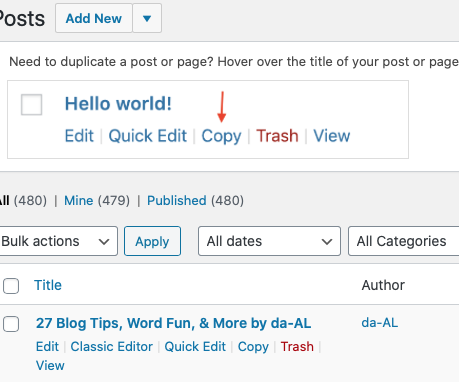 See how on the bottom left is the option to use Classic Editor? Using a desktop computer, just hover your mouse under your blog post title on your admin page.
If I wanted to write a post from my iPad, WordPress offers an abbreviated version Classic. To switch over to it, tap on the three dots in the screen’s upper right corner.
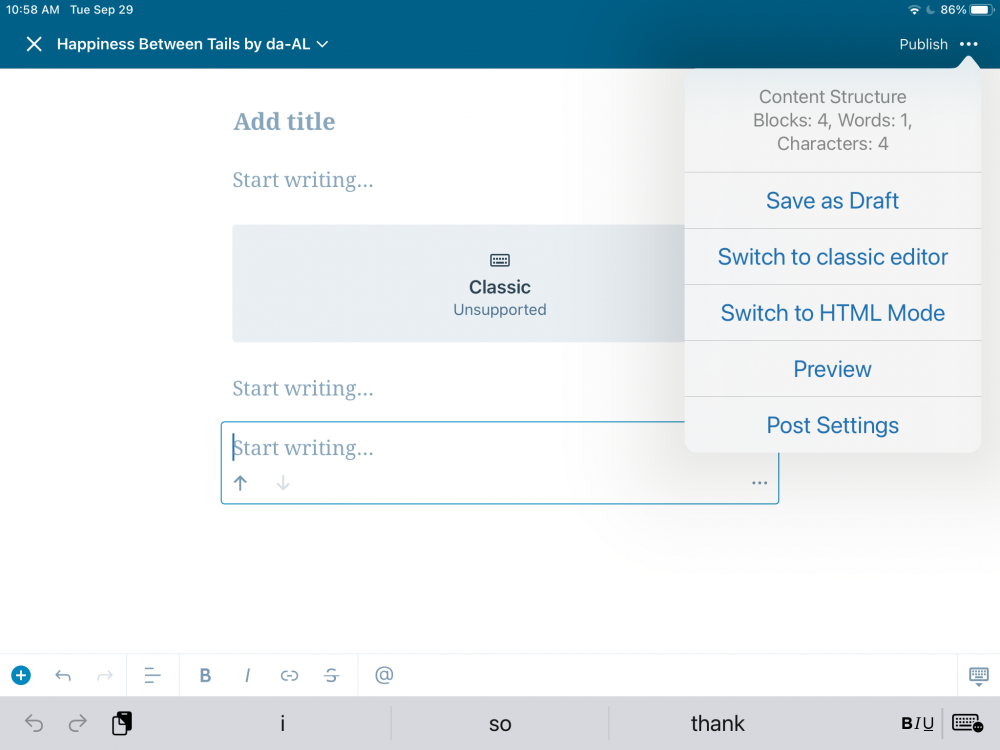 Clicking on the 3 dots in the upper right corner of your tablet gives you the option to use Classic.
Using an iPhone works similar to an iPad.
 Here’s when I clicked on the 3 dots in the upper right corner of my phone.
For a more detailed explanation, but that doesn’t include the way I described that I do it from my desktop computer, WordPress has this link.
In another post of my blogging tips, the mention of WordPress’ newer editing system got people talking, so here I’m offering you a chance to comment below. Vent? Praise? Either way, when I let WordPress know about this post with your comments on it, maybe they’ll actually listen to us.
Again wishing you joy — and ease — whether you’re blogging, reading, writing — or are you traveling online?
How do you deal with computer annoyances?
Discover more from Happiness Between Tales (and Tails) by da-AL
Subscribe to get the latest posts sent to your email.


Nice information ❤️
LikeLiked by 1 person
thank you!
LikeLike
Reblogged this on By the Mighty Mumford and commented:
I AND MY BLOG PREFER TO BE CLASSICS! 😀
LikeLiked by 2 people
indeed you are — you have a great site 🙂
LikeLiked by 1 person
You are indeed a gracious blogger!
LikeLiked by 1 person
poetry is best posted via classic! 😀
LikeLiked by 2 people
interesting!
LikeLiked by 1 person
Yes. The block editor is odd and when working on additional pages you don’t see the page as how it will appear in real time. I’m trying to get used to it but it’s cumbersome. The classic version is set up like a word processor and was easy to use. Third party page plugins are a must with blocks until WordPress advances further. Eventually we will not be able to use the classic version.
However, I do find that my site runs faster and is more mobile friendly using the right coded theme with Gutenberg blocks.
LikeLiked by 2 people
You deal with computer annoyances like you deal with life every day>you listent to the positive *&* ignore the negative *&* keep creating!<
LikeLiked by 2 people
great, Mildred — yes!
LikeLike
My name is Van Prince, my mother’s name is mildred and I use her name here to honor her. My post *Van Prince* and that will explain it.
LikeLike
good to know, Tim
LikeLike
[…] WordPress Classic vs. Block Editor How-To by da-AL […]
LikeLiked by 2 people
thanks for linking my post to your site 🙂
LikeLike